
Adjusting Audio Levels in Your Video
Good sound matters as much as a good picture. Watch your movie from start to finish and fix the volume where needed: make background music quieter under speech, bring up a quiet recording, or silence an unwanted noise. In Bolide Movie Creator you do all of this right on the timeline, for audio clips and for video clips with sound.
Change the volume of a clip
- Add an audio clip to the timeline: drag it from the Audio Library tab (see Add Audio to Audio Library). A video clip with sound works the same way.
-
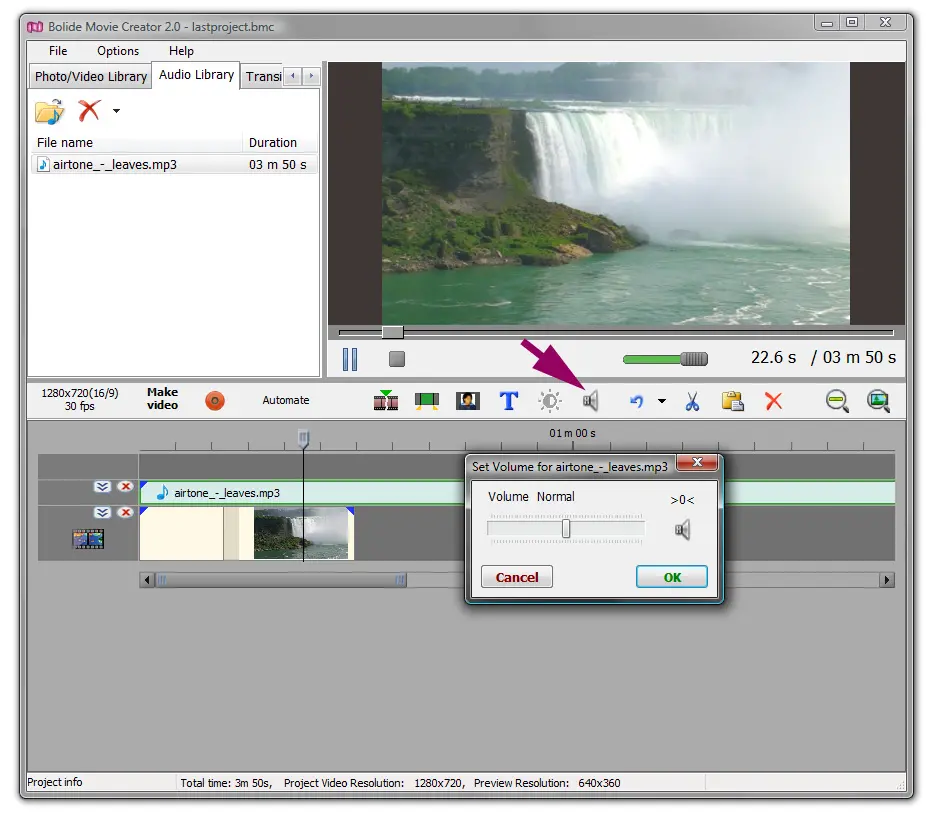
Select the clip on the timeline, click the Audio operations button on the timeline toolbar and choose Adjust sound. You can also press Ctrl+A, or right-click the clip and choose Adjust sound volume.
The clip switches to volume editing mode: a volume line with key points at its start and end appears on the block.
- Drag the volume line up to make the clip louder or down to make it quieter. The level is shown in percent: 100% is the original volume, 0% at the very bottom is silence. You can go above 100% (up to about four times the original level) to boost a quiet recording.
-
To change the volume only in part of the clip, add key points. Right-click the volume line where you need a point and choose Add key point. Drag the points to shape the volume over time: for example, fade the music down to zero, keep it silent for a while, then bring it back. To remove a point, right-click it and choose Delete key point.
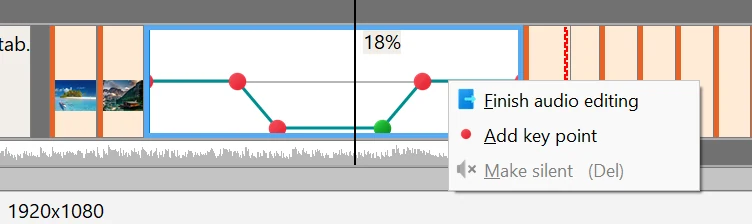
- To silence an unwanted part quickly (a cough, a noise, a bad word), drag the mouse across that part inside the block to select it, then press Del or right-click and choose Make silent (Del). The key points are placed automatically so the volume in the selection drops to zero.
- For fine adjustment use the Up and Down arrow keys: each press changes the level by 1%. If a key point is selected, only that point changes; if a part of the clip is selected, only that part changes; otherwise the whole volume line moves.
- When you are done, right-click the clip and choose Finish audio editing, or press Ctrl+A again.
Audio fade in and fade out
-
To make the sound rise smoothly at the start of a clip or die away at the end, right-click the clip and choose Audio Fade in or Audio Fade out, then pick the duration: 0.5, 1, 2, 3 or 5 s. Choose None to remove the fade. This works for audio clips and for video clips with sound.
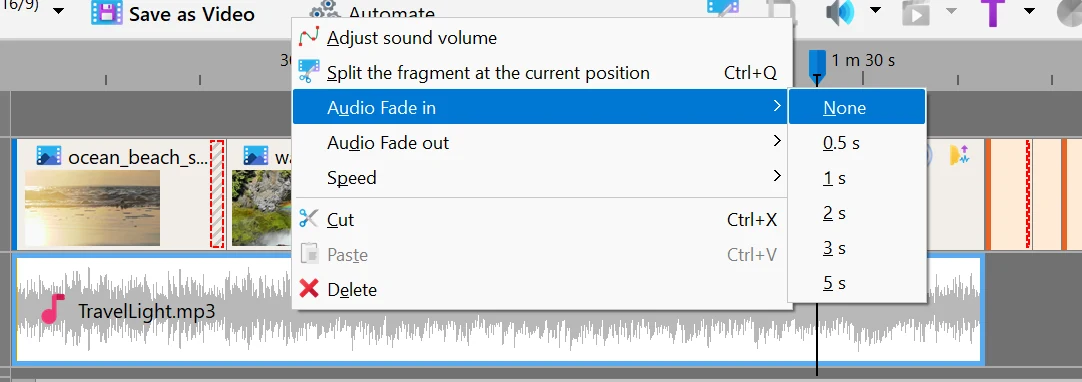
- These commands change only the sound. To fade the picture in or out, see Add Fading for Video Clips.
Mute a clip or a whole track
- To turn off the sound of a clip, select it and choose Turn off sound in this clip in the Audio operations menu (the same command is in the right-click menu of a video clip). If several clips are selected, all of them are muted. Choose the command again to turn the sound back on.
- To mute everything on a track, click the Turn off the sound of this track button in the track header on the left side of the timeline (see Working with Tracks and the Timeline).
- To save the sound of a video clip as a separate MP3 or WAV file, right-click the clip and choose Save audio to file. The new file is added to the Audio Library. The Project menu has the same command for the soundtrack of the whole project.
More sound tools
Reduce noise in audio (in the Audio operations menu) opens the Sound improvement settings window. Use noise reduction removes steady background noise such as microphone hiss; the strength is set by Noise reduction level (dB). Use volume normalization brings a quiet recording up to a normal level, and the window shows the resulting Volume multiplier. Click Listen to check the result before you confirm.
Pitch shift makes a voice or music sound lower or higher. Move the slider in the Tune pitch shift window toward Lower or Raise.
Equalizer adjusts the tone of the sound: bass, midrange and treble. Pick a preset such as Bass boost, Treble cut or Voice, or set the bands yourself.
Reverb makes the sound as if it were recorded in a room or a hall. Choose a preset from Vocal I to Cathedral or tune room size, reverb level and the other settings yourself. All these tools are described in detail in Improving the Sound of a Clip.
Back to Video Editing Guide.