
Cut and Split Video
To make a movie, you'll first need to take the media clips that you added to the Library and arrange them on your timeline. Once they're on the timeline, you can cut, split, trim and modify your clips so that they are the perfect length before connecting them together with transitions.
- Place a video clip on the project timeline.
-
Next, determine where you would like to cut or split the video. Click Play to watch the clip in real time in the preview window (the Space key also starts and pauses playback). To jump to another moment, grab the sliding cursor with your mouse and move it along the top of your timeline. For precise frame-by-frame positioning, use the Left and Right arrow keys. When you hover the mouse over the position slider under the preview window, a tooltip shows the exact time at that point; for a video from the library it also shows the frame, so you can find the right moment before you click.
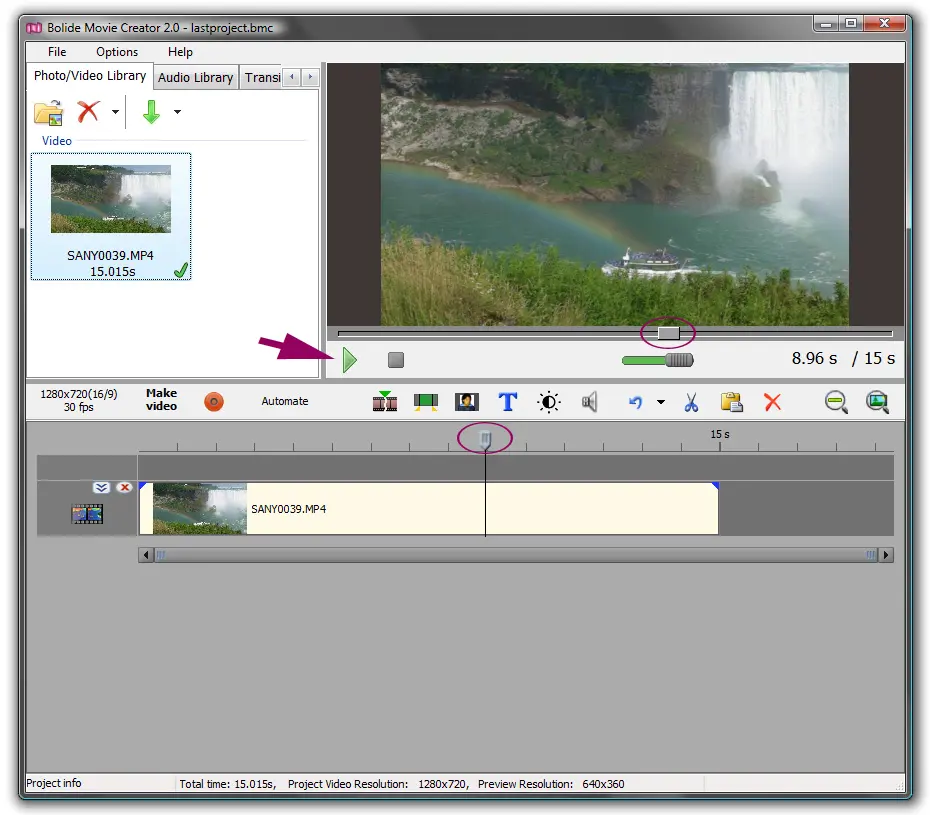
-
Once your cursor is set to where you'd like to cut the video, click the Split the fragment at the current position button on the toolbar above the timeline or press Ctrl+Q. You can also right-click the clip on the timeline and select Split the fragment at the current position from the menu.
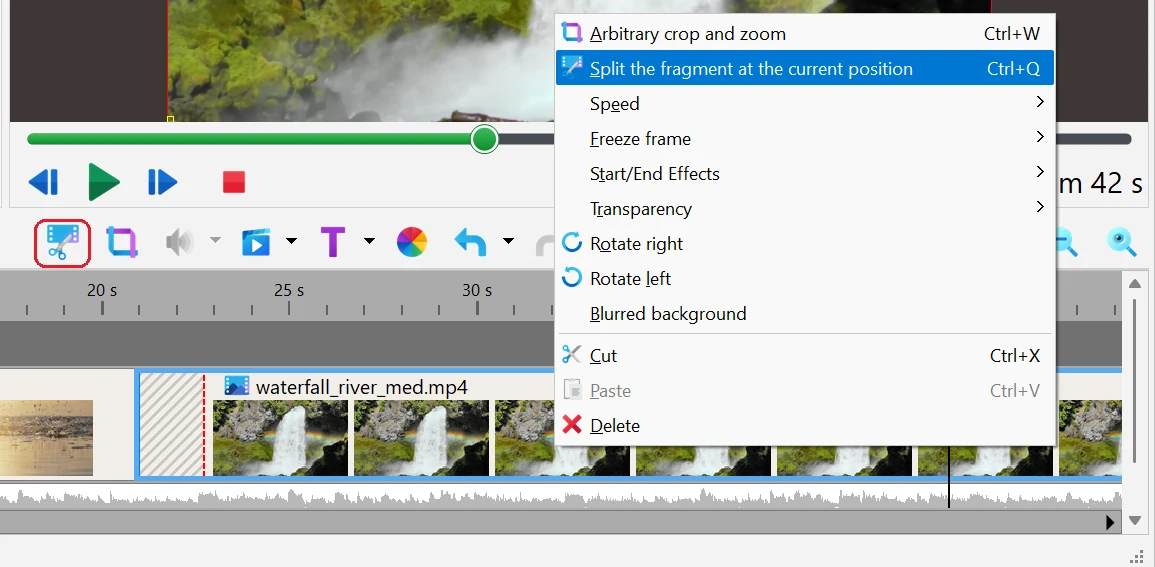
- Delete the unnecessary part: click it to select it and press the Delete key, or right-click it and select Delete from the menu. You can also use the Delete button on the toolbar above the timeline.
- Good to know: you can split several clips at once at the cursor position. Select them first: hold down Ctrl and click each clip you need. If nothing is selected, the clip under the cursor is split.
- Good to know: you can delete an empty space between clips the same way. Click the gap to select it and press Del: all clips to the right of it on this track move left by the size of the gap.
- You don't have to split a clip to trim it. Drag the right edge of the clip to the left to make it end earlier, or drag the left edge to the right so the clip starts from the moment you need.
- If you hold down Ctrl while dragging a clip's edge, you change its playback speed instead of trimming it. Learn more in Changing Video Speed.
- To save the trimmed video, click the Save as Video button.
- Need only a piece of a long video, without any effects? It is faster to cut it without re-encoding: mark the fragment as a virtual clip and save it as a separate file. It takes seconds even for a long 4K recording, and the quality stays exactly the same. See Lossless Cut and Join with Virtual Clips.
Back to Video Editing Guide.