
Add Text Comments to Video
Have you ever noticed that most movies include text elements? That's because sometimes, onscreen text is the best way to communicate extra information to your audience. Text elements can take many forms and appearances depending on which options you choose, and what you need the text to do. Whether you want to add a title to the beginning of a movie, include credits at the end, or just add a nameplate that lets your audience know who is speaking, text can give your videos a big boost in quality.
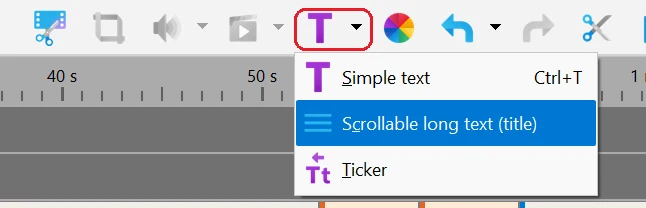
Bolide Movie Creator offers three types of text blocks. Click the small arrow next to the T button on the main toolbar to choose one:
- Simple text — a caption or comment of any style placed anywhere in the frame. This is the type covered on this page.
- Scrollable long text (title) — long text that scrolls up the screen, for example closing credits.
- Ticker — a line of text that runs across the screen.
Step-by-step: adding text to a video
- Move the timeline cursor to the moment where the text should appear. Then click the blue T icon on the main toolbar or press Ctrl+T. A new text block is placed at the cursor position on a free track above your clips, and the Text settings window opens.
-
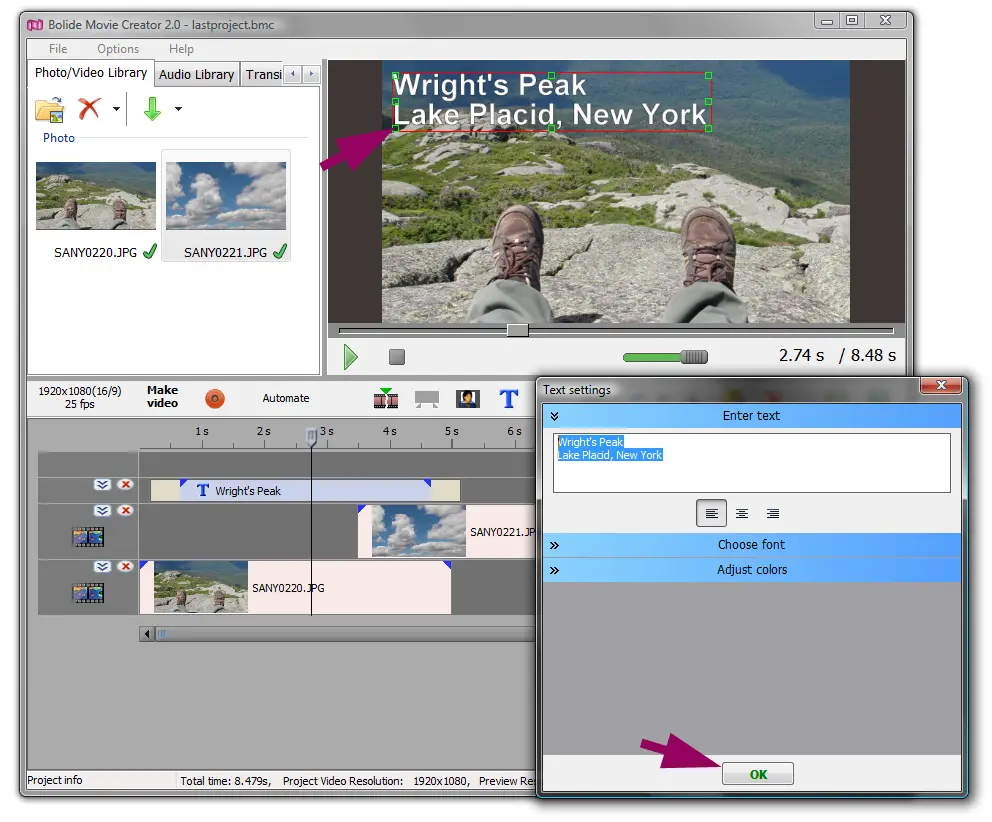
Type your text, choose a font, size and colors. You can also insert emojis directly from the Text settings window. All changes are shown in the preview right away. To change the font or color of just a part of the text, select that part with the mouse first. A full description of every option is in Text Settings Explained.
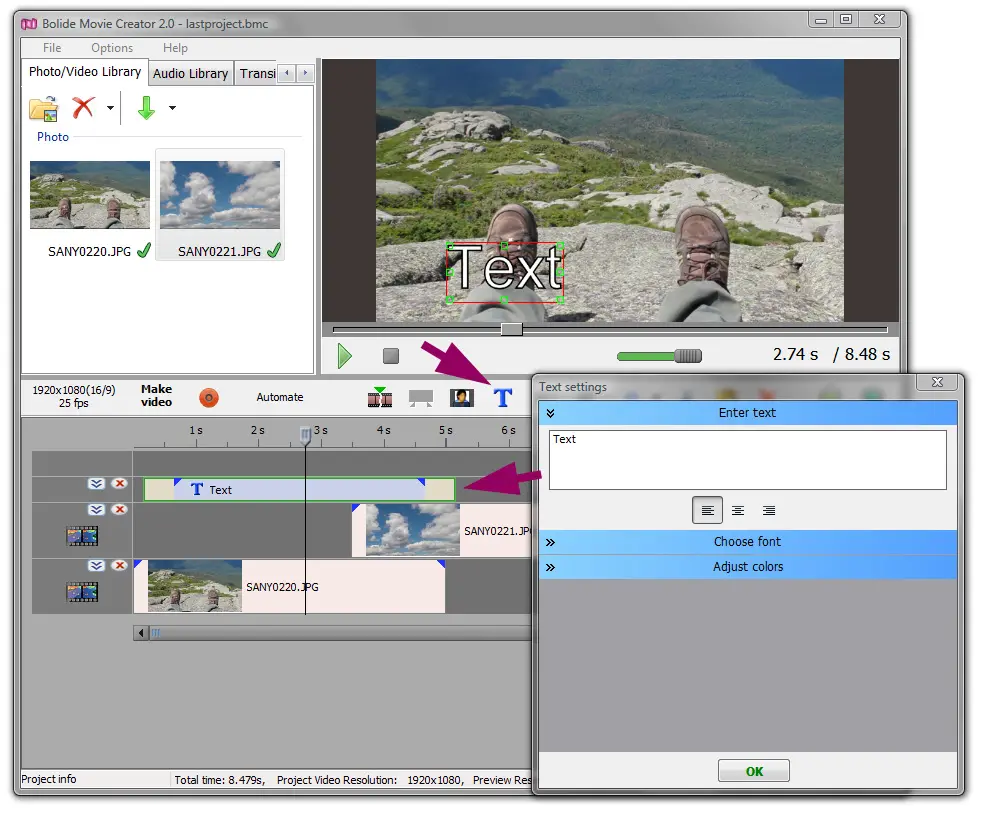
- Click OK to apply the changes. Cancel (or Esc) discards them; if the block was just added, it is removed from the timeline. To open the Text settings window again later, double-click the text block on the timeline, or right-click it and choose Edit text properties.
-
Next you can change the size and position of the text right in the preview. When the text block is selected and the timeline cursor is inside it, a frame with markers appears around the text. Drag the text to move it, and drag the markers to resize the frame.
- How long the text stays on screen is simply the length of its block. A new block is 5 seconds long; drag its left or right edge on the timeline to make it shorter or longer. Drag the whole block left or right to change when the text appears.
-
Now add appearance and disappearance effects. Notice the two red dashed rectangles at the beginning and at the end of the text block: they show the appearance and disappearance effects. By default a new text smoothly fades in and out. Hover the mouse over the inner side of an effect rectangle until the cursor changes to ←||→, then drag the border to make the effect longer or shorter.
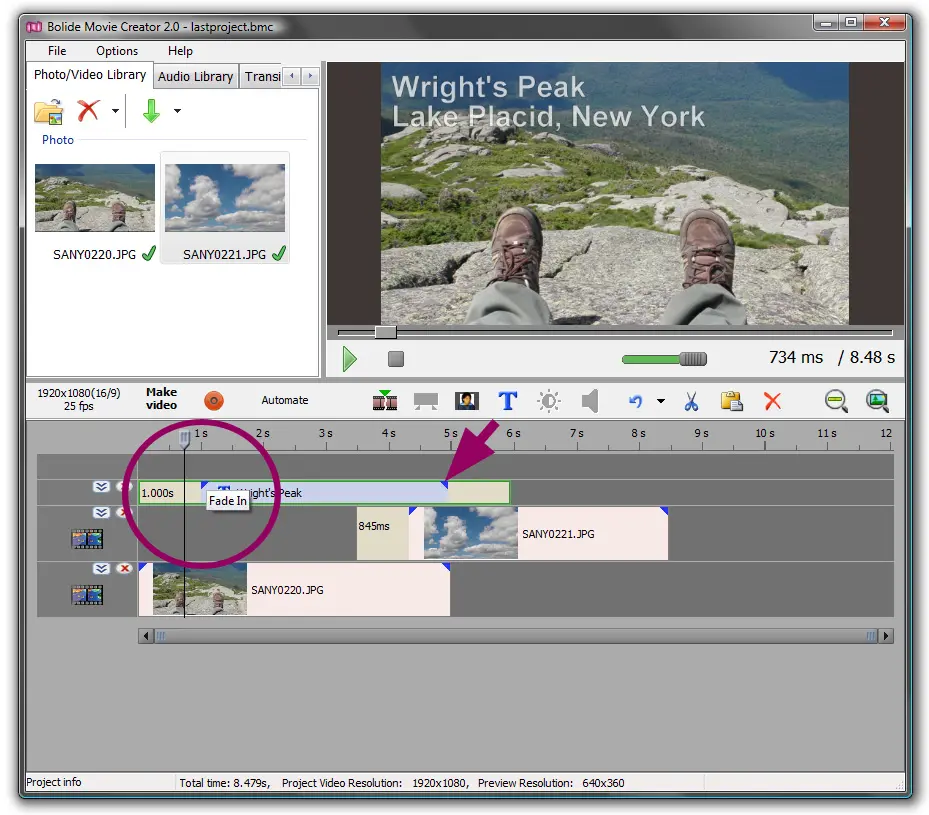
- To use a different effect, right-click the effect rectangle and pick an effect from the menu (effects are grouped by category). If you want the text to appear or disappear instantly, click the effect rectangle to select it and press Del.
-
You can also set exact effect durations from the menu. Right-click the text block and open Start/End Effects. It has three submenus: Set Start/End Effect changes both effects at once, while Start Effect and End Effect change only one of them. Each offers None, 0.25, 0.5, 1.0, 1.5 or 2.0 seconds. Tip: this is faster and more accurate than dragging with the mouse.
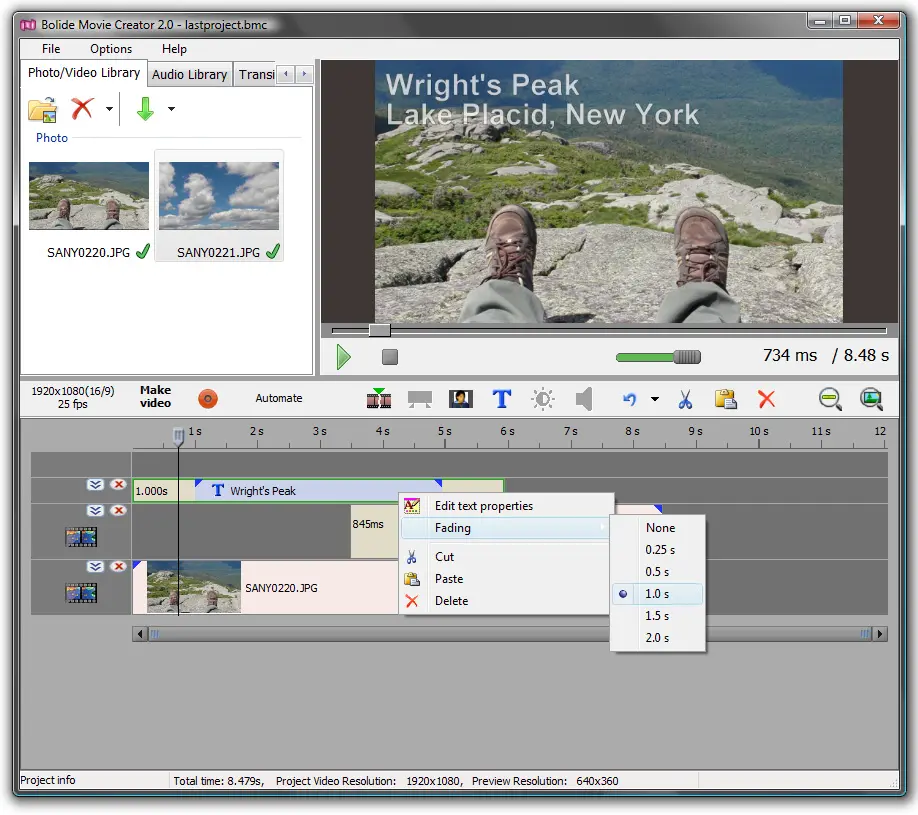
- The appearance and disappearance animations and their durations can also be chosen in the Text settings window — see Text Settings Explained.
- That's it! Now save your movie with the added text using the Save as Video button.
Scrolling titles and ticker
The Scrollable long text (title) and Ticker blocks are also added with the arrow next to the T button. They open a separate Edit text window: type or paste your text and choose a font; the Properties tab has Font size, Scrolling speed, Margins and the Outline of text checkbox, and the Font color tab sets the text color. You can check the result right away with the built-in play button. To change such a block later, right-click it on the timeline and choose Edit.... Details: Scrolling Credits and Ticker. Counters (stopwatch, timer, frame counter) are available only in Simple text blocks.
Note: the program can't import subtitles from external files.
Back to Video Editing Guide.