
Adding a timer, countdown and frame counter to the video
Sometimes you need to overlay a countdown (timer) or just a stopwatch to a video (for example, you need to measure the time of an event on the video). It is an easy task for the Bolide Movie Creator video editor. The download link is on the right.
A frame counter, stopwatch or timer is added in the video editor using a text block and special tags, which will be replaced in the video with actual values. Here is how to add timer to video.
Counters are available only in Simple text blocks. The Scrollable long text (title) and Ticker blocks (see Scrolling Credits and Ticker) don't have the "+Counter" button.
Add a stopwatch to the video
- To add a stopwatch to the video, add a text block to the project by clicking the "T" button or pressing Ctrl+T. The block appears at the timeline cursor, and the Text settings window opens.
-
In the Text settings window, place the text cursor where the counter should be, click the "+Counter" button and select "Stopwatch" in the pop-up menu.
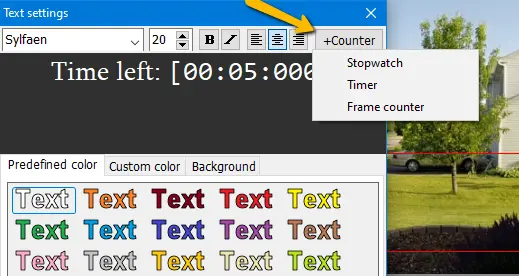
- The program will add the tag [00:00:000] (minutes, seconds, milliseconds) to the text. The tag is inserted in a monospaced font, so the digits don't jump while counting. In the video it is replaced with the actual time. Please note that if you set a non-zero time value in the tag, the counter will work as a timer - with a countdown.
Add a countdown timer to the video
- Adding a timer for the countdown is done in the same way. Add a text block to the project, click the "+Counter" button, and select "Timer".
- The program inserts the tag [00:05:000] — a 5-second countdown. Change the value in the tag to the time you need. For example, to count down ten seconds, the tag should look like this - [00:10:000]
- Besides, you can set the font and color you want for your timer. You can do this in the same way as for text. Read more in the text parameters article.
Add a frame counter to your video
- If you need to add a frame counter to the video, add a text block and in the text settings dialog, click on the "+Counter" button and select "Frame counter".
- The program will add a [frame] tag to the text, which will be replaced with the current frame number in the video.
- Please note that frames are counted from the beginning of the text block.
Back to Video Editing Guide.