
Pan and Zoom Effect for Photos
The Pan and Zoom effect (also known as the Ken Burns Effect) adds motion to still photographs. Watching a static image in a video can feel dull. With pan and zoom, the camera glides across the photo while zooming in or out. Applying the effect in Bolide Movie Creator is simple: set a start and end area on the photo, and the program smoothly moves the camera between those regions.
The effect works with photos only. To zoom into part of a video clip, use the Zoom effect.
Step-by-step pan and zoom setup in Bolide Movie Creator
- Start by adding the photo you want to animate to the project. Prefer a high-resolution image — the higher the resolution, the deeper a zoom you can use while staying sharp. Drag the photo onto the timeline.
-
Select the photo block, click the Operations on visual blocks button and choose Add or edit pan-zoom effect. The same item is in the menu that opens when you right-click the photo block. The Edit Pan & Zoom effect properties dialog opens.
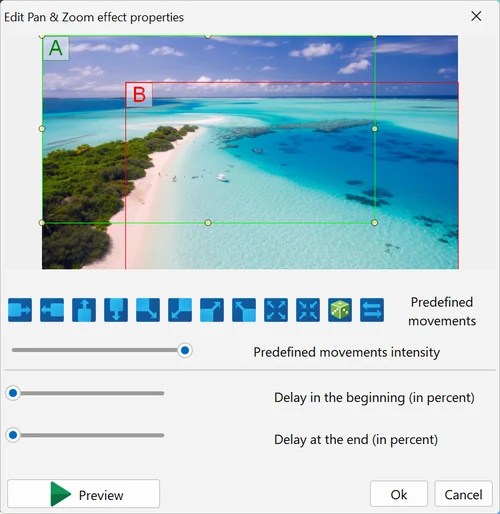
- A new effect already gets a random movement, so you can click Preview right away. Note the two rectangles — A and B. They define the start and end areas of the photo that will be in frame. Motion goes from rectangle A to rectangle B.
- You can set the effect manually or automatically. Manually, place the rectangles where you want and size them (for zoom in/out) yourself. In this dialog you can drag them with the mouse and scale them by pulling the selection handles. The arrow keys nudge the selected rectangle by one pixel.
- For automatic setup, use the Predefined movements buttons and the Predefined movements intensity slider. First set the slider, then click a button: the slider itself does not move anything, the intensity is applied when you click a template. The higher the intensity, the farther apart the rectangles and the stronger the motion. The buttons cover slides up, down, left and right, four diagonal movements, zoom in, zoom out and a movement from a random place (hover a button for a tooltip). The Swap frames button swaps rectangles A and B, so the motion goes the other way. The program remembers the intensity you set.
- Click Preview (or press Space) to see how the effect will look in your video. While the preview plays, the button turns into Stop. If something is off, adjust it without closing the dialog.
- There are also sliders for delay: Delay in the beginning (in percent) and Delay at the end (in percent), up to 45% each. Delay is a percentage of the block duration. For example, with a 20% start delay on a 5-second block, the first second shows a still image, then motion between rectangles A and B begins. End delay works the same way — it finishes the motion before the block ends.
- Click Ok (or press Enter) to keep the effect. Cancel (Esc) discards the changes; if you were adding a new effect, it is removed.
- To change the settings later, double-click the photo in the preview window, or click the small effect icon on the photo block and choose Settings. To remove the effect, choose Delete this effect in the same menu.
Good to know
If you are building a slideshow from many photos and want pan and zoom on every photo on one track, you do not have to configure each one by hand. Select any photo on that track, click Automate and choose Set random pan-zoom with intensity, then pick the intensity you want (10% to 100%). The program applies random pan-and-zoom settings at that intensity to all photos on the track of the selected block. The menu item is available only while a photo is selected.
Template buttons are also handy for scrolling panoramas. When adding pan and zoom to a panorama photo, move the intensity slider all the way to the right and then click the Slide from left to right button for a smooth panorama scroll.
Pan and zoom can be combined on the same block with Arbitrary crop and zoom, rotation and flipping and the Virtual Screen effect.
Video tutorial: pan and zoom effect
Back to Video Editing Guide.