Add Audio to Audio Library
Whether you're looking to add sound effects or your favorite songs, no movie is complete until you've added background audio. BMC lets you add as many audio elements as you need through its convenient Audio Library. Spruce up your movies by including extra audio elements on your timeline!
-
Add an audio clip to your project by clicking the folder icon (Add audio files to library) in the top-left corner of the Audio Library tab. You can also drag files from Windows Explorer into the thumbnail area of the library — it shows all audio files added to the current project so far. Supported formats include MP3, AAC, M4A, WMA, WAV, OGG, FLAC, Opus and AIFF. Hover over the small info icon on a thumbnail to see the codec, bitrate, number of channels and sample rate.
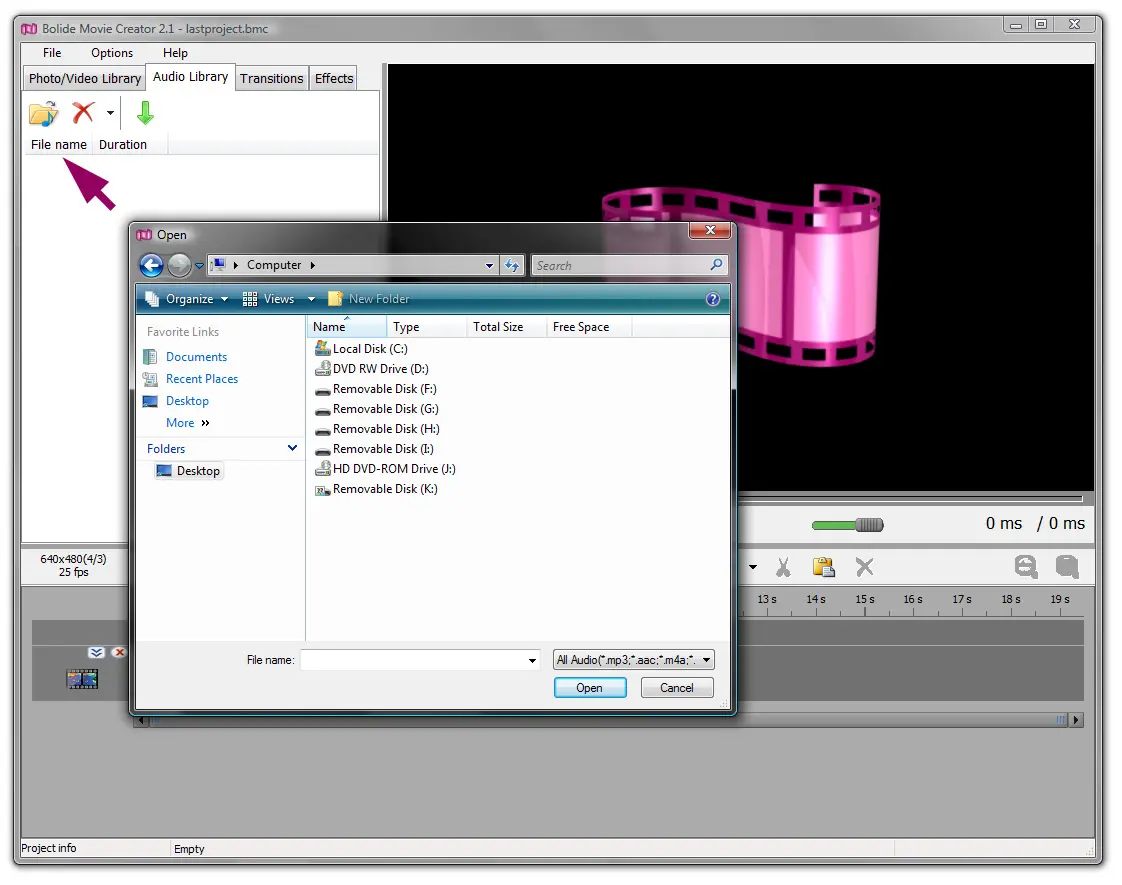
- The library belongs to the current project. If you need audio files from your previous projects, click the Open recent button (clock icon) on the Audio Library toolbar. It also brings back your earlier microphone recordings.
- To add a song or other audio file to the timeline, click its thumbnail in the library to select it, then click the green arrow (Add selected audio to project) on the Audio Library toolbar. You can also drag the thumbnail from the library onto the timeline.
- To put music over a video, place the audio file on a separate track under or above the video clip, so they play at the same time. Often the video's own sound needs to be turned down or muted; see Adjusting Audio Levels in Your Video to learn how.
-
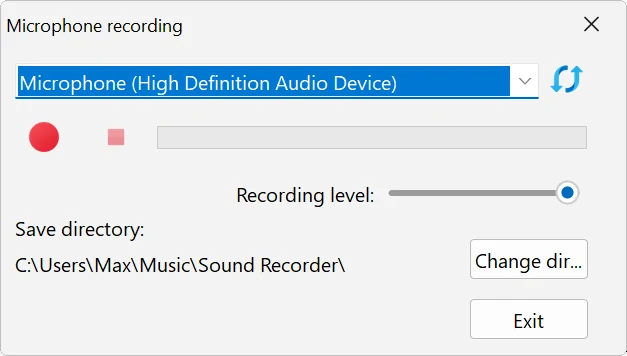
Record a voice-over right in the program: click the microphone button (Audio recorder) on the Audio Library toolbar. In the Microphone recording window, choose your microphone from the list (Rescan devices updates the list if you've just plugged it in), set the Recording level and, if needed, a different folder via Change dir.... Then click Start recording; when you're done, click Stop recording. The recording is saved as an MP3 file named after the date and time and is added to the Audio Library automatically.
- To clean up a voice recording, select its block on the timeline and use Audio operations > Reduce noise in audio on the toolbar above the timeline: it reduces background noise and brings the volume to a normal level. The equalizer, pitch shift and reverb are described in Improving the Sound of a Clip.
- A little trick: you can add a video file to the Audio Library. When you drag it from there to the project, only its sound is added, as an audio block. It's handy when you need just the soundtrack of a video. To pick a video in the open dialog, choose All (*.*) in the file type list, or drag the video onto the Audio Library list.
- The Audio Library list also has a Visualizers group with music visualizer styles: graphics that move to the sound of the clip. Select a clip on the timeline, click a style and press Add Music Visualizer, or simply drag the style onto the timeline. See Music Visualizer.
Back to Video Editing Guide.