
How to Join Multiple Videos into One
One of the most common video editing tasks is joining clips together. It is straightforward, yet we often get support questions like "How do I merge several videos?" Naturally, you concatenate them in a video editor.
Here is a step-by-step guide (with screenshots!) on how to join videos in Bolide Movie Creator:
-
First, add all the videos you want to merge to the local library in the video editor. You can drag and drop the files into the program window or use the folder button Add photo/video to library on the Photo/Video Library tab.
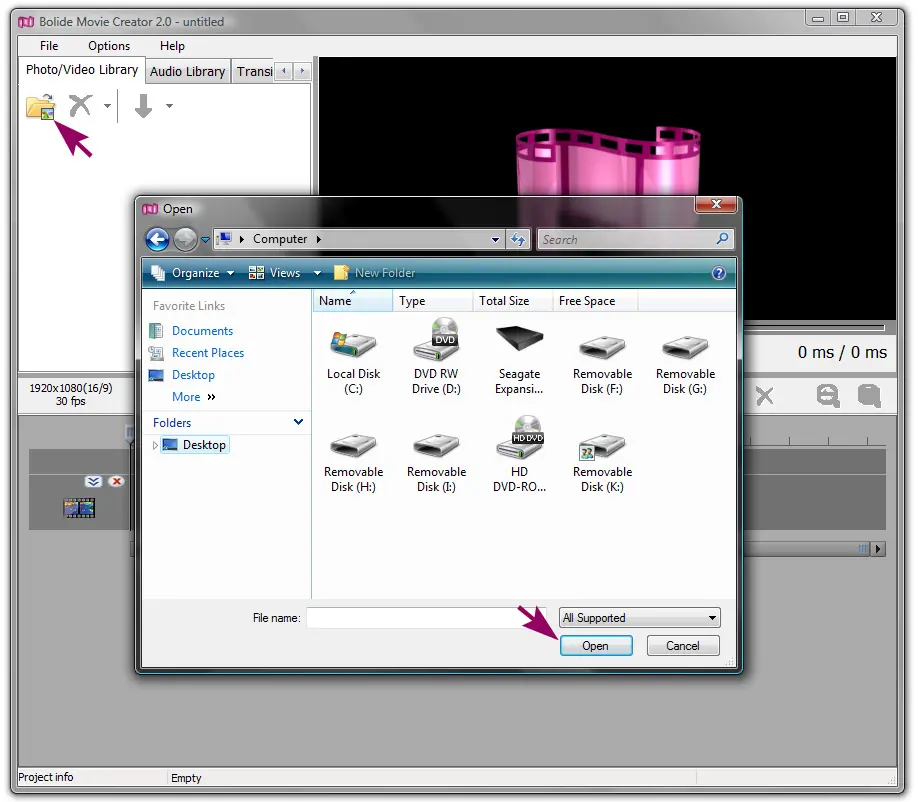
-
Next, drag the clips from the local library into your project. Place them on the same track and in the order you want:
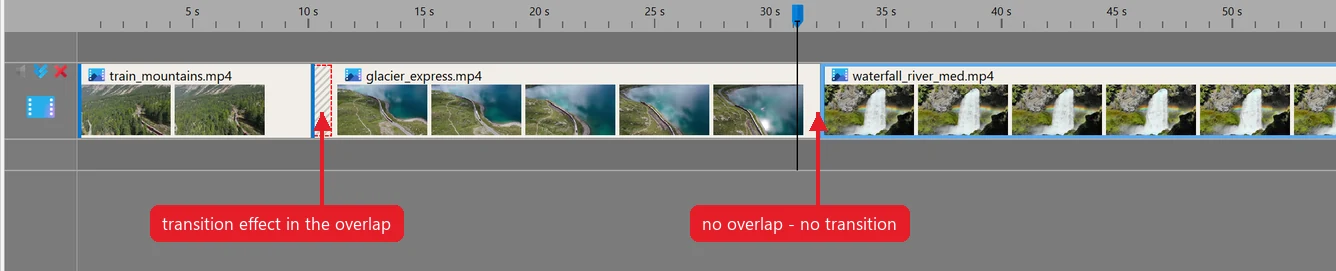
- Quick way: if the clips should simply go one after another, click the small arrow next to the green arrow button on the Photo/Video Library toolbar and choose Add all Video Sorted by > file name ascending (or another option: descending, or by date). All clips from the library are added one after another to the end of the project in that order.
- To insert a clip between two clips that are already on the track, drag it to the joint between them. The clip is inserted there, and the clips to the right move over to make room.
- Snap the clips together so they sit edge to edge. The program helps by sticking them to each other. When clips are flush, the second clip starts immediately after the first ends — no pause and no effects. If you want a pause, do not snap them fully; leave a small gap between them. If you want to add a transition effect, overlap the clips slightly so one rides over the other. You can place a transition exactly at that overlap. Learn more in the article Add Video Transitions and Effects.
- If snapping gets in the way while you move clips, hold down the Shift key to temporarily disable it.
- That is essentially it. Click the Save as Video button and you will get a single video file made from the clips you selected.
- If you need to trim a video before joining, see How to Cut and Split Video. That is just as simple.
- Want to keep several parts of one long video and drop everything in between (pauses, mistakes, ads)? Mark the parts as virtual clips and join them without re-encoding: it is much faster than saving through the timeline and keeps the original quality. See Lossless Cut and Join with Virtual Clips.
Back to Video Editing Guide.