
Freeze Frame
A freeze frame stops the video on one frame for a few seconds and then lets it play on. Use it to hold a funny face, the moment a ball crosses the line, or to give the viewer time to read a title over a still picture. In Bolide Movie Creator it takes two clicks.
Add a freeze frame
- Place the timeline cursor on the frame you want to freeze. To find the exact frame, use the Previous Frame and Next Frame buttons under the preview window (or the Left and Right arrow keys).
-
Right-click the video clip and hover over Freeze frame. Choose how long the picture should stand still: 1 Second, 3, 5, 10, 20 or 30 Seconds.
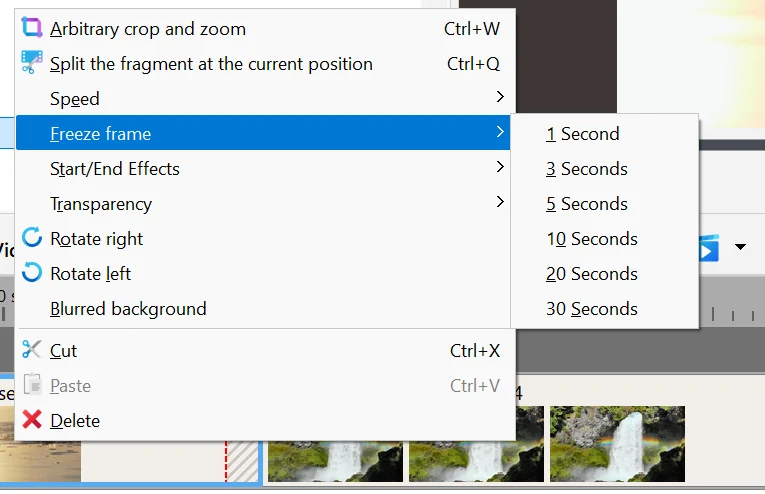
- The freeze starts at the cursor position. If the cursor is not inside this clip, it first jumps to the place where you right-clicked. If the cursor is less than half a second from the beginning of the clip, the freeze is placed at the very beginning.
What happens on the timeline
-
The clip becomes longer by the freeze duration. A light blue area appears on the clip block at the place of the freeze; its width shows how long the picture stands still.
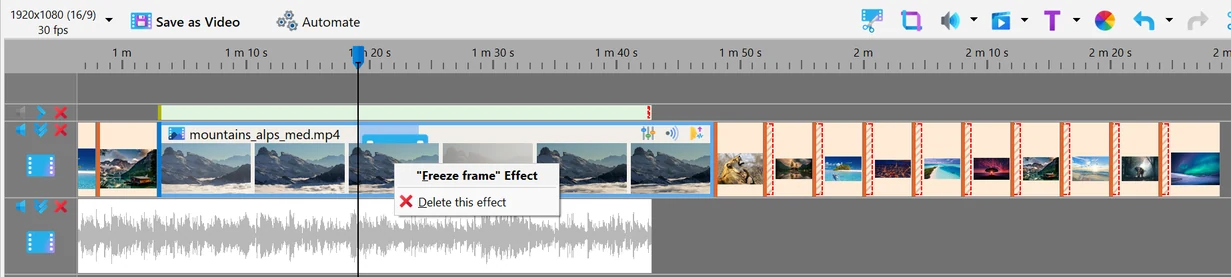
- The clips after it on the same track move to the right by the same amount. Clips on other tracks (music, titles, overlays) stay where they were, so check that they still match the picture.
- While the picture is frozen, the clip's own sound is silent. After the freeze the video and its sound continue from the same frame.
- One clip can have several freeze frames at different places.
Change or delete a freeze frame
- Click (or right-click) the light blue area on the clip. The menu shows "Freeze frame" Effect at the top; choose Delete this effect. If several clips are selected, a freeze frame is removed from each of them as well.
- After deleting, the clip gets its original length back, but the clips after it do not move back: an empty gap remains. Click the gap and press Del to close it. If you have just added the freeze, it is easier to press Ctrl+Z: this undoes everything at once.
- The duration of an existing freeze frame cannot be changed. Delete it and add a new one with the duration you need.
Good to know
- Freeze frame is available for video clips only. A photo is still anyway: to show it longer, simply drag the edge of its block.
- Nothing happens if the cursor is inside an existing freeze frame or less than half a second before the end of the clip.
- To keep a frame as a picture file, see Saving a Frame as a Picture and Viewing File Info. For slow motion and fast forward, see Changing Video Speed.
Related topics
- Changing Video Speed
- Reversing a Video
- Saving a Frame as a Picture and Viewing File Info
- Cut and Split Video
- Video Effects
Back to Video Editing Guide.