Saving a Frame as a Picture and Viewing File Info
Sometimes you need a still picture from your movie: a cover for YouTube, a photo for social networks or a screenshot for a report. Bolide Movie Creator saves the current frame of the project to a PNG or JPG file or copies it to the clipboard. On the same page you will find out how to see the technical details of a video, audio or photo file.
Save the current frame to a file
- Move the preview cursor to the frame you need. For exact positioning, use the Left and Right arrow keys: they move the cursor one frame back or forward. Make sure the preview is paused on this frame.
-
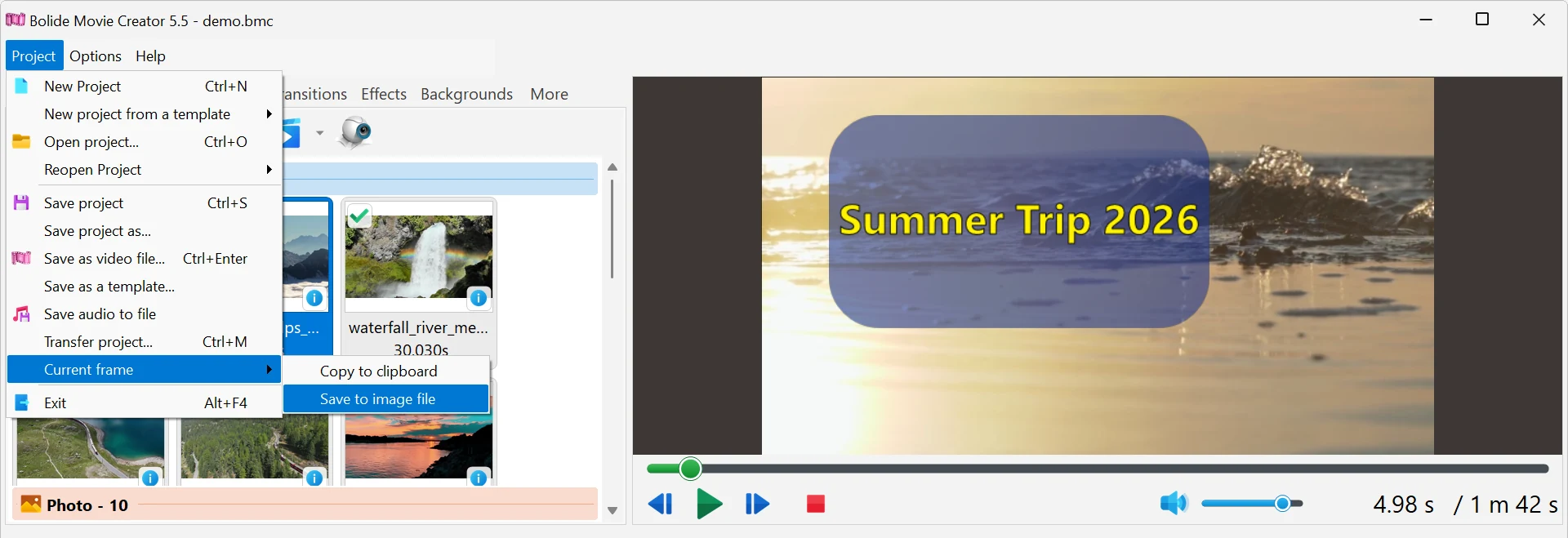
Open the Project menu, point to Current frame and choose Save to image file.
- In the save window choose the folder, the file name and the type: png (lossless, larger file) or jpg (smaller file, good for photos). The suggested name is taken from the project file name (Untitled if there is no project file yet). The first time, the window opens your Pictures folder; later it opens the folder you used last.
Copy the current frame to the clipboard
- Choose Project > Current frame > Copy to clipboard. Nothing is saved to disk: the picture is placed on the Windows clipboard, and you can paste it with Ctrl+V into a graphics editor, a document or a messenger.
What gets into the picture
- The frame is saved exactly as it looks in the finished movie: all tracks, texts, transitions and effects at this point are included.
- The picture has the resolution of the project, not the size of the preview window. For example, in a 1920x1080 project you get a 1920x1080 picture even if the preview is small. See Project Video Resolution and Frame Rate.
- The command saves a frame of the project on the timeline. It is unavailable while the preview is not showing the project.
View media info of a file
-
On the Photo/Video Library or Audio Library tab, right-click a file and choose Show media info.
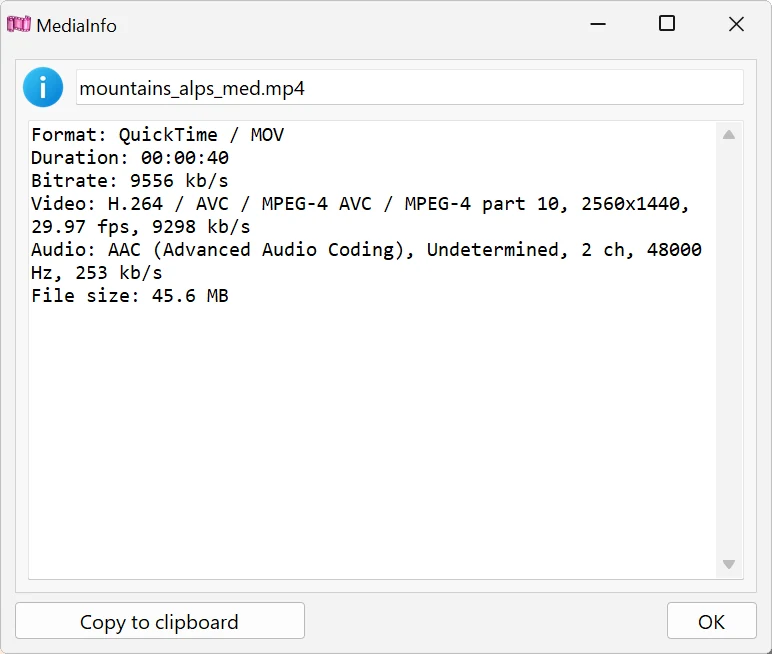
- The MediaInfo window shows the file name and a short summary. For a video or audio file: the container format, the duration, the overall bitrate, a line for each video stream (codec, frame size, frame rate, bitrate, rotation if the video is rotated), a line for each audio stream (codec, number of channels, sample rate, bitrate), subtitles if there are any, and the file size. For a picture: the image format, the dimensions, the rotation and the bits per pixel.
- Copy to clipboard copies the whole text, which is handy when you ask for help with a file that does not open or plays incorrectly. OK or Esc closes the window.
- In the same right-click menu, Open folder with file opens Windows Explorer in the folder where the file is stored.
Save the sound to a file
- To save the soundtrack of the whole project as an MP3 or WAV file, choose Project > Save audio to file. To save the sound of one video clip, right-click the clip and choose Save audio to file. Details: Adjusting Audio Levels in Your Video.
Good to know
- To get a sharp picture, pause on a frame without motion blur: step through a few frames with the arrow keys and pick the clearest one.
- To use a frame as a still image in your movie, save it to a PNG file and add it to the Photo/Video Library, see Add Photo/Video to Project Library. To hold a frame right on the timeline, use Freeze Frame.
- For a vertical cover (for example, 1080x1920 for Shorts or Reels), set the project resolution first and then save the frame.
Related topics
- Project Video Resolution and Frame Rate
- Freeze Frame
- Convert Video to another Format
- Adjusting Audio Levels in Your Video
- Keyboard shortcuts in Bolide Movie Creator
Back to Video Editing Guide.