Scrolling Credits and Ticker
Closing credits that float up the screen and a news-style line of text running across the frame are two classic ways to show a lot of text in a video. Bolide Movie Creator has a separate block type for each of them: Scrollable long text (title) and Ticker. You only type the text and choose the look and speed — the program moves the text for you.
Add a credits or ticker block
- Move the timeline cursor to the moment where the text should start.
-
Click the small arrow next to the blue T button on the main toolbar and choose Scrollable long text (title) for credits that scroll from the bottom of the frame to the top, or Ticker for a single line that runs from right to left. (The T button itself and Ctrl+T add a Simple text block — see Add Text Comments to Video.)
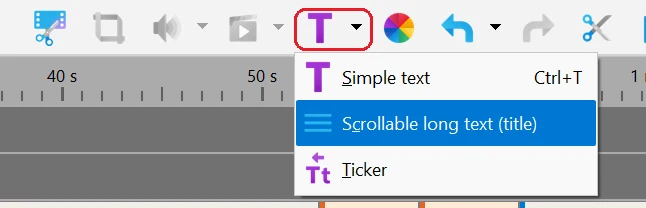
- The new block appears at the cursor on a free track, and the Edit text window opens right away. If you click Cancel (or press Esc) in this first window, the new block is removed.
The Edit text window
- Type or paste your text into the large field. The amount of text is not limited, so even very long credits fit. For credits, every line of the field is a line on the screen, so press Enter to start a new line. A ticker is always one line on the screen: Enter does nothing, and line breaks in pasted text are replaced with spaces. In the field itself a long ticker text is wrapped, so you can see and edit all of it without scrolling sideways. The preview shows the text as you type.
- Above the text field are the font list, the Bold and Italic buttons and, for credits only, the alignment buttons Align Left, Center and Align Right (alignment always applies to the whole text). Select part of the text first if you want to change the font or style of just that part.
- Three more buttons there help with editing: Add Emoji opens the Windows emoji panel, the paste button inserts text from the clipboard, and the clear button deletes all the text at once. The right-click menu of the text field has the usual Undo, Cut, Copy, Paste, Delete and Select All.
-
All changes are shown in the main preview window. The play button and the slider at the bottom of the window play the block right there, so you can check the speed without closing the window.
Properties and Font color tabs
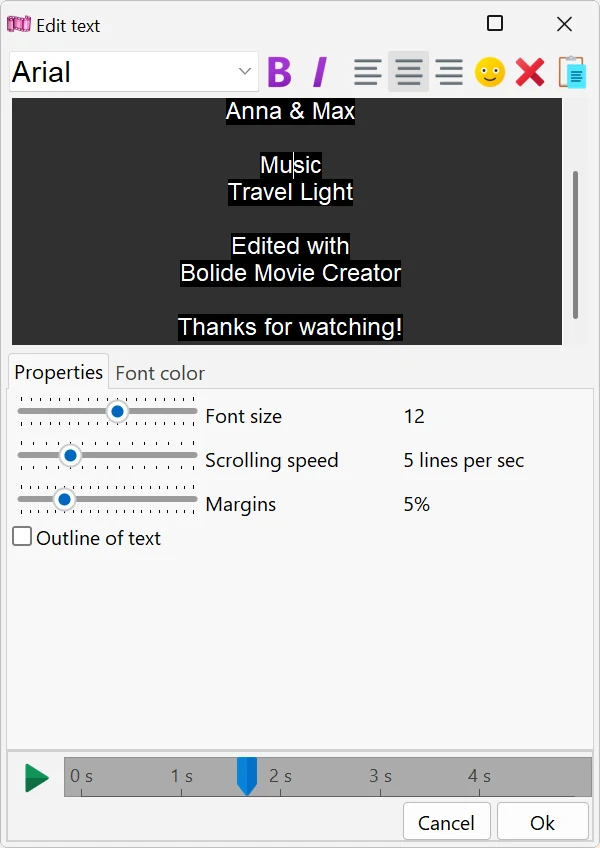
- Font size — from 2 to 20, 12 by default. The size is relative to the height of the video frame, so the text looks the same in a 720p and in a 4K video.
- Scrolling speed — from 1 to 15, 5 by default. For credits it is measured in lines per second (the label reads, for example, "5 lines per sec"), for a ticker — in characters per second ("5 chars per sec").
- Margins — from 0 to 20% of the frame width, 5% by default. It moves left- or right-aligned credits away from the edge of the frame. The ticker has no margins setting.
- Outline of text — draws a dark outline around the letters so that the text stays readable over a light or busy picture.
-
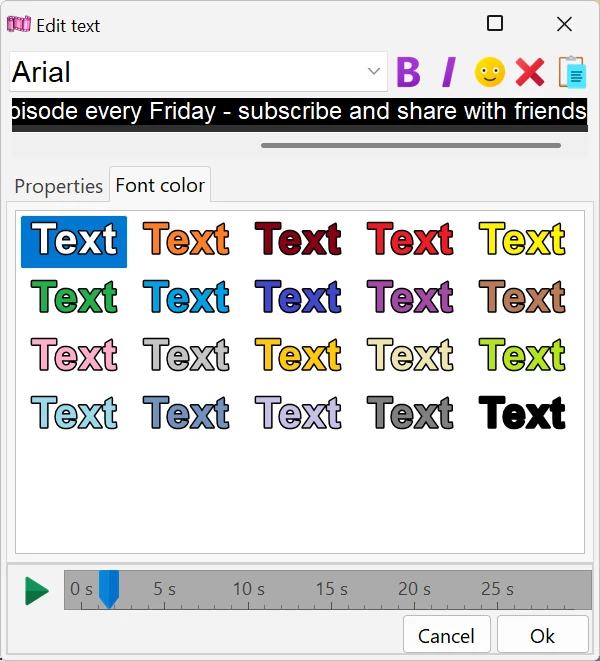
On the Font color tab click a color sample to paint the whole text, or select part of the text first to paint only that part.
- Click Ok to keep the changes. The next new block of the same type starts with the settings you used last (font, size, speed, color, outline).
How long the block is and how speed works
- You don't need to fit the block length by hand: the program calculates it from the amount of text and the speed. Credits start completely below the frame and end when the last line has gone above it, so the block length is (the number of text lines + the number of lines that fit on the screen) divided by the speed. A ticker starts just beyond the right edge and ends when the whole line has left the frame on the left.
- So more text means a longer block, and a higher Scrolling speed means a shorter one. The block length on the timeline is updated as you type and move the slider.
- You can also drag the left or right edge of the block on the timeline, both for credits and for a ticker: the text then runs faster or slower to fit the new length, and the Scrolling speed value is recalculated. This is handy when the credits must end exactly with the music.
Change the block later
- Double-click the block on the timeline, or right-click it and choose Edit..., to open the Edit text window again. Cancel returns everything as it was before you opened the window.
- Drag the block along the timeline to change when the text starts. To delete it, choose Delete in the same right-click menu or select the block and press Del.
- When the block is selected, its area is shown with a frame in the preview window. You can drag the frame, for example, to put a ticker at the bottom of the frame. If you make the frame smaller, the text is cut off at its edges rather than squeezed: credits and a ticker scroll inside the frame, like in a window. Double-click inside the frame to return it to the full frame.
Good to know
- Compared to a Simple text block, credits and ticker are simpler: there are no counters (stopwatch, timer, frame counter), no text background, no appear/disappear animations and no start/end effects. If you need these, use Simple text — see Text Settings Explained and Adding a timer, countdown and frame counter to the video.
- The text is only moved at a constant speed; there is no pause at the beginning or at the end. If you want a still title before the credits, add a Simple text block in front of them.
- The program can't import subtitles or credits from external files — type or paste the text.
- To save the result, click Save as Video.
Related topics
- Add Text Comments to Video
- Text Settings Explained
- Adding a timer, countdown and frame counter to the video
- Working with Tracks and the Timeline
- Keyboard shortcuts in Bolide Movie Creator
Back to Video Editing Guide.