
Program Settings and the Help Menu
Bolide Movie Creator works well out of the box, but a few settings are worth knowing: the interface language, autosave, how long new photos and transitions last, and the update check. All of them are in the Options menu and are remembered for the next start. This page also explains the Help menu.
Change the interface language
-
Open Options > Language and choose a language. The menu item is always called Language in English, so you can find it even if the program is in a language you do not read.
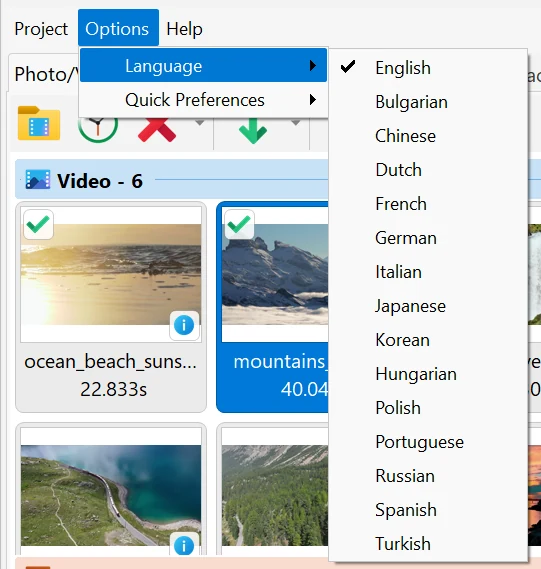
- 15 languages are available: English, Bulgarian, Chinese (Simplified), Dutch, French, German, Hungarian, Italian, Japanese, Korean, Polish, Portuguese (Brazil), Russian, Spanish and Turkish. The names in the list are shown the way Windows names these languages.
- The interface switches at once, without restarting the program. On the first start the program uses the language of Windows if it is in the list.
Quick Preferences
-
Open Options > Quick Preferences. The submenu has six items.
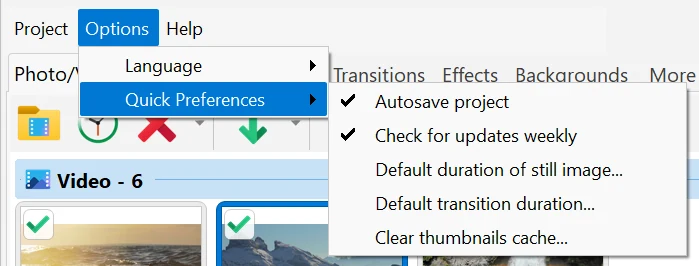
- Autosave project (on by default) — the project is saved automatically after every change. A project that has never been saved goes to a special file lastproject.bmc. We recommend leaving this option on. With autosave on, the program does not ask whether to save changes when you create or open another project or exit: they are already saved. With autosave off, it asks Save Project? before your changes could be lost. Details: Saving and Opening Projects.
- Check for updates weekly (on by default) — once a week, a few seconds after the start, the program checks the website for a new version. A window appears only if an update is found.
- Default duration of still image... — how long a photo lasts when you add it to the project. The default is 5 seconds. In the Set default duration window type the number of Seconds; a decimal value such as 3.5 is allowed. The new value is used for photos you add afterwards; photos already on the timeline keep their length (to change one, right-click it and choose Set duration).
- Default transition duration... — the length of a new transition, 1 second by default. It is used when you drag a transition from the Transitions tab onto clips, and when you drop several files from the library onto the timeline at once: neighbouring clips then overlap by this length. The same Set default duration window is used. Transitions already in the project do not change. See Add Transitions and Effects.
- Frame skipping during playback — what the preview does when the computer cannot show every frame in time (a 4K video, many tracks and effects). Auto (the default) skips late frames only when the video is decoded by the graphics card: playback keeps the real speed. Yes always skips late frames, even on a slow computer without hardware decoding. No shows every frame; on a heavy project playback may then become slower than real time. This option affects only the preview, the saved video always contains all frames.
- Clear thumbnails cache... — the program keeps service files with thumbnails and indexes of your media files so that they open faster. If the cache has grown large, choose this item: the program tells you how much space will be freed (This will free ... MB of disk space. Clear the thumbnails cache?) and deletes the files if you click Yes. Your videos, photos and projects are not affected; the thumbnails are simply created again when needed, so the first display of a file may take a little longer.
The Help menu
- About... (F2) — the program version and the license information: the license holder, or Unregistered trial version. Video will be saved with the watermark. The window has the Purchase button (opens the order page) and Activate... for entering your activation code, see activation code.
- Check for updates... — checks for a new version right now. If there is none, you see No updates were found. Check again later. If there is, the window says New Update Found! and lists what is new; Download update opens the Bolide Movie Creator website, where you download the new version and install it over the current one.
- Open Video Editing Guide... (F1) — opens this guide in your browser. With the Russian, German or Spanish interface the guide opens in that language, otherwise in English.
- Ask on Facebook... — opens the Bolide Movie Creator page on Facebook, where you can ask a question. With the Russian interface there is also an item for the VKontakte page.
- Get license — the rightmost item of the main menu, shown only in the trial version. It opens the order page.
Actions after saving a video
- These options are not in the Options menu: they are in the progress window that appears while a video is being saved. Under When encoding completes: you can choose Shut down Windows, Close application, Open the folder with the file or Beep sound. See Convert Video to another Format.
Good to know
- Settings are stored for your Windows user account, so they stay the same after you install a new version.
- Keys: F1 — the guide, F2 — About. The full list is in Keyboard shortcuts in Bolide Movie Creator.
- The project resolution and frame rate are not program settings: they are set for each project, see Project Video Resolution and Frame Rate.
Related topics
- Saving and Opening Projects
- Project Video Resolution and Frame Rate
- Add Transitions and Effects
- Convert Video to another Format
- Keyboard shortcuts in Bolide Movie Creator
Back to Video Editing Guide.